This video tutorial shows MINIX 3.4 Installation and Configuration on Oracle VirtualBox step by step. This tutorial is also helpful to install MINIX 3 on physical computer or laptop hardware. We also perform MINIX3 post installation setup tasks: Check network connection, set password for root, set time zone, install basic applications and common packages.
MINIX 3.4 Installation Steps:
Create Virtual Machine on Oracle VirtualBox
Start MINIX 3.4 Installation
MINIX 3 Post Installation Setup
Install and Configure OpenSSH Server Service
Install Common Packages via pkgin_sets
Installing MINIX 3.4 on Oracle VirtualBox
What is MINIX 3?
MINIX 3 is a free, open-source, operating system designed to be highly reliable, flexible, and secure. It is based on a tiny microkernel running in kernel mode with the rest of the operating system running as a number of isolated, protected, processes in user mode. It runs on x86 and ARM CPUs, is compatible with NetBSD, and runs thousands of NetBSD packages.
MINIX 3 is extremely small, with the part that runs in kernel mode in about 5,000 lines of source code, while the parts that run in user mode are divided into small, insulated modules which enhance system reliability. Originally designed as an educational tool, the latest versions of MINIX are also targetted at embedded systems and low-power laptops. By the project's own admission, MINIX is work in progress and is nowhere near as mature as BSD or Linux. It is released under a BSD-type licence.
MINIX 3 Website: http://www.minix3.org/
Hope you found this MINIX 3.4 Installation and Configuration on Oracle VirtualBox tutorial helpful and informative. Please consider sharing it. Your feedback and questions are welcome!
Parrot Security OS 3.6 (ParrotSec OS) Installation on Oracle VirtualBox
This video tutorial shows Parrot Security OS 3.6 (ParrotSec OS) installation on Oracle VirtualBox step by step. This tutorial is also helpful to install ParrotSec 3.6 on physical computer or laptop hardware. We also install Guest Additions on Parrot Security OS for better performance and usability features: Automatic Resizing Guest Display, Shared Folder, Seamless Mode and Shared Clipboard, Improved Performance and Drag and Drop.
Parrot Security OS 3.6 Installation Steps:
Create Virtual Machine on Oracle VirtualBox
Start Parrot Security OS 3.6 Installation
Install Guest Additions
Test Guest Additions Features: Automatic Resizing Guest Display and Shared Clipboard
Installing Parrot Security OS 3.6 on Oracle VirtualBox
Parrot Security OS 3.6 New Features and Improvements
Parrot Security OS 3.6 is less memory-hungry. This was done by tuning up startup daemons management system and minor fixes. As a result, Parrot 3.6 Lite 32-bit now uses less than 200 MB RAM. Anonsurf was improved too, and now the section dedicated to anonymity and privacy is very reliable and well tested, and some nightmares of the precedent anonsurf versions now belong to the past. This release also brings a new Parrot OS derivative named Parrot Air. It’s similar to Parrot Full and comes with tools dedicated solely for wireless testing.
Parrot team says that Parrot Air is just a proof of concept that’ll be improved in future. Parrot Core is not only an awesome security oriented platform, but it is also suitable for more general purpose derivative projects, and workstations and personal computers can only take advantage from a very lightweight debian based system which is ready out of the box with all the customization and configurations already done by Parrot team.
Parrot Security OS Website: https://www.parrotsec.org/
VirtualBox Guest Additions Features
The Guest Additions offer the following features below:
Improved Video Support: While the virtual graphics card which VirtualBox emulates for any guest operating system provides all the basic features, the custom video drivers that are installed with the Guest Additions provide you with extra high and non-standard video modes as well as accelerated video performance.
Mouse Pointer Integration: This provides with seamless mouse support. A special mouse driver would have to be installed in the guest OS, which would exchange information with the actual mouse driver on the host. The special mouse driver then allows users to control the guest mouse pointer.
Time Synchronization: With the Guest Additions installed, VirtualBox can ensure that the guest's system time is better synchronized with that of the host.
Shared Folders: These provide an easy way to exchange files between the host and the guest.
Seamless Windows: With this feature, the individual windows that are displayed on the desktop of the virtual machine can be mapped on the host's desktop, as if the underlying application was actually running on the host.
Shared Clipboard: With the Guest Additions installed, the clipboard of the guest operating system can optionally be shared with your host operating system.
Hope you found this Parrot Security OS 3.6 installation on Oracle VirtualBox tutorial helpful and informative. Please consider sharing it. Your feedback and questions are welcome!
Debian GNU/Linux 8.8 Server Installation on Oracle VirtualBox
This video tutorial shows Debian GNU/Linux Server 8.8 installation on Oracle VirtualBox step by step. This tutorial is also helpful to install Debian 8.8 as a server on physical computer or laptop hardware. We also install Guest Additions on Debian Linux 8.8 for better performance and usability features.
Debian GNU/Linux Server 8.8 Installation Steps:
Create Virtual Machine on Oracle VirtualBox
Start Debian 8.8 Server Mode Installation
Install VirtualBox Guest Additions
Installing Debian GNU/Linux Server 8.8 on VirtualBox
Debian 8.8 New Features and Improvements
Debian GNU/Linux 8.8 mainly adds corrections for security problems to the stable release, along with a few adjustments for serious problems. Security advisories were already published separately and are referenced where available. Those who frequently install updates from security.debian.org won't have to update many packages and most updates from security.debian.org are included in this update. Debian 8.8 is not a new version of Debian. It’s just a Debian 8 image with the latest updates of some of the packages. So, if you’re running a Debian 8 installation with all the latest updates installed, you don’t need to do anything.
Debian Website: https://www.debian.org/
Hope you found this Debian GNU/Linux Server 8.8 installation on Oracle VirtualBox tutorial helpful and informative. Please consider sharing it. Your feedback and questions are welcome!
Debian 8.8 LXDE Desktop Installation on Oracle VirtualBox
This video tutorial shows Debian 8.8 LXDE Desktop installation on Oracle VirtualBox step by step. This tutorial is also helpful to install Debian 8.8 on physical computer or laptop hardware. We also install Guest Additions on Debian 8.8 LXDE for better performance and usability features: Automatic Resizing Guest Display, Shared Folder, Seamless Mode and Shared Clipboard, Improved Performance and Drag and Drop.
Debian 8.8 LXDE Desktop Installation Steps:
Create Virtual Machine on Oracle VirtualBox
Start Debian 8.8 LXDE Desktop Installation
Install Guest Additions
Test Guest Additions Features: Automatic Resizing Guest Display and Shared Clipboard
Installing Debian 8.8 LXDE on Oracle VirtualBox
Debian 8.8 New Features and Improvements
Debian 8.8 mainly adds corrections for security problems to the stable release, along with a few adjustments for serious problems. Security advisories were already published separately and are referenced where available. Those who frequently install updates from security.debian.org won't have to update many packages and most updates from security.debian.org are included in this update. Debian 8.8 is not a new version of Debian. It’s just a Debian 8 image with the latest updates of some of the packages. So, if you’re running a Debian 8 installation with all the latest updates installed, you don’t need to do anything.
Debian Website: https://www.debian.org/
What is LXDE Desktop?
LXDE, which stands for Lightweight X11 Desktop Environment, is a desktop environment which is lightweight and fast. It is designed to be user friendly and slim, while keeping the resource usage low. LXDE uses less RAM and less CPU while being a feature rich desktop environment. Unlike other tightly integrated desktops LXDE strives to be modular, so each component can be used independently with few dependencies. This makes porting LXDE to different distributions and platforms easier.
LXDE Website: http://lxde.org/
Hope you found this Debian 8.8 LXDE Desktop installation on Oracle VirtualBox tutorial helpful and informative. Please consider sharing it. Your feedback and questions are welcome!
Debian 8.8 XFCE Desktop Installation on Oracle VirtualBox
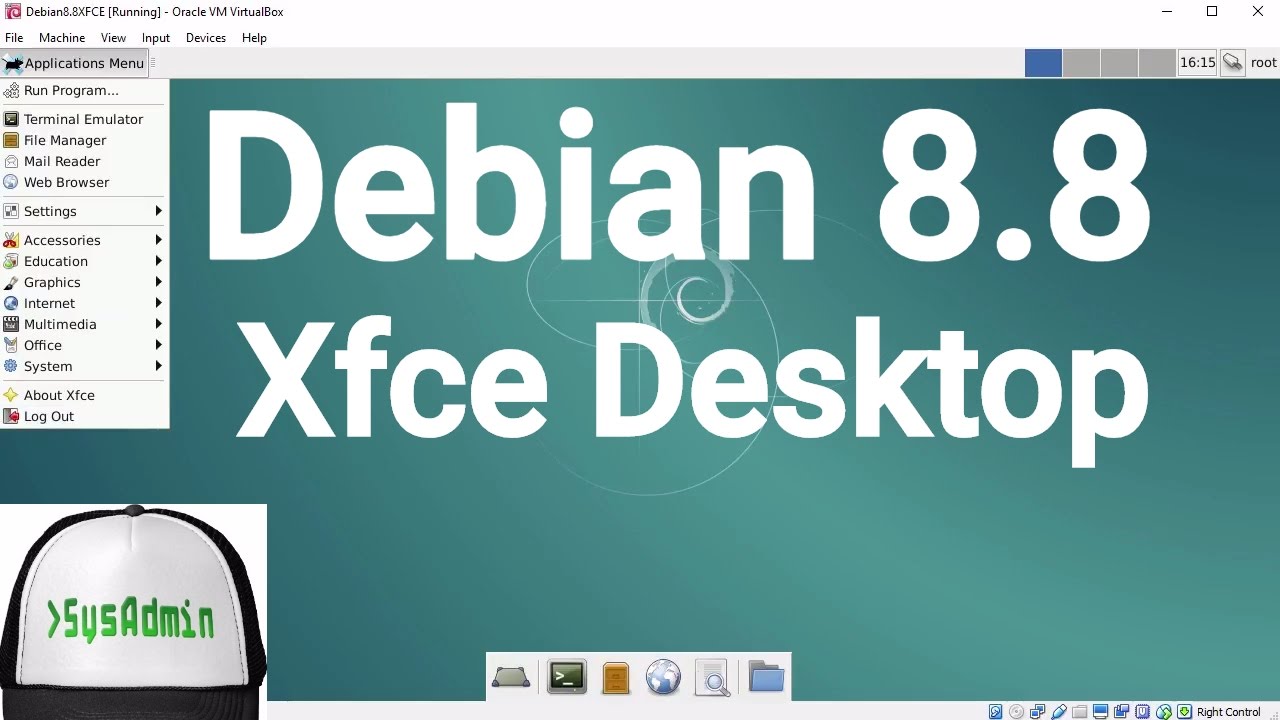
This video tutorial shows Debian 8.8 XFCE Desktop installation on Oracle VirtualBox step by step. This tutorial is also helpful to install Debian 8.8 on physical computer or laptop hardware. We also install Guest Additions on Debian 8.8 XFCE Desktop for better performance and usability features: Automatic Resizing Guest Display, Shared Folder, Seamless Mode and Shared Clipboard, Improved Performance and Drag and Drop.
Test Guest Additions Features: Automatic Resizing Guest Display and Shared Clipboard
Installing Debian 8.8 Xfce Desktop on Oracle VirtualBox
Debian 8.8 New Features and Improvements
Debian 8.8 mainly adds corrections for security problems to the stable release, along with a few adjustments for serious problems. Security advisories were already published separately and are referenced where available. Those who frequently install updates from security.debian.org won't have to update many packages and most updates from security.debian.org are included in this update. Debian GNU/Linux 8.8 is not a new version of Debian. It’s just a Debian 8 image with the latest updates of some of the packages. So, if you’re running a Debian 8 installation with all the latest updates installed, you don’t need to do anything.
Debian Website: https://www.debian.org/
What is Xfce Desktop Environment?
Xfce is a lightweight desktop environment for UNIX-like operating systems. It aims to be fast and low on system resources, while still being visually appealing and user friendly. It includes a window manager, a file manager, desktop and panel.
Xfce Desktop Website: https://www.xfce.org/
Hope you found this Debian GNU/Linux 8.8 XFCE Desktop installation on Oracle VirtualBox tutorial helpful and informative. Please consider sharing it. Your feedback and questions are welcome!
Debian 8.8 Cinnamon Desktop Installation on Oracle VirtualBox
This video tutorial shows Debian 8.8 Cinnamon Desktop installation on Oracle VirtualBox step by step. This tutorial is also helpful to install Debian 8.8 on physical computer or laptop hardware. We also install Guest Additions on Debian 8.8 Cinnamon for better performance and usability features: Automatic Resizing Guest Display, Shared Folder, Seamless Mode and Shared Clipboard, Improved Performance and Drag and Drop.
Test Guest Additions Features: Automatic Resizing Guest Display and Shared Clipboard
Installing Debian GNU/Linux 8.8 Cinnamon on Oracle VirtualBox
Debian 8.8 New Features and Improvements
Debian 8.8 mainly adds corrections for security problems to the stable release, along with a few adjustments for serious problems. Security advisories were already published separately and are referenced where available. Those who frequently install updates from security.debian.org won't have to update many packages and most updates from security.debian.org are included in this update. Debian 8.8 is not a new version of Debian. It’s just a Debian 8 image with the latest updates of some of the packages. So, if you’re running a Debian 8 installation with all the latest updates installed, you don’t need to do anything.
Debian Website: https://www.debian.org/
What is Cinnamon Desktop Environment?
Cinnamon is a desktop environment that is based on the GTK+ 3 toolkit. It was released in 2011. Cinnamon originally started as a fork of GNOME Shell, thus initially as a mere graphical shell of the GNOME software, but became its own desktop environment in Cinnamon 2.0. Cinnamon was developed by the Linux Mint distribution, with wider adoption spreading to other distributions over time.
VirtualBox Guest Additions Features
The Guest Additions offer the following features below:
Improved Video Support: While the virtual graphics card which VirtualBox emulates for any guest operating system provides all the basic features, the custom video drivers that are installed with the Guest Additions provide you with extra high and non-standard video modes as well as accelerated video performance.
Mouse Pointer Integration: This provides with seamless mouse support. A special mouse driver would have to be installed in the guest OS, which would exchange information with the actual mouse driver on the host. The special mouse driver then allows users to control the guest mouse pointer.
Time Synchronization: With the Guest Additions installed, VirtualBox can ensure that the guest's system time is better synchronized with that of the host.
Shared Folders: These provide an easy way to exchange files between the host and the guest.
Seamless Windows: With this feature, the individual windows that are displayed on the desktop of the virtual machine can be mapped on the host's desktop, as if the underlying application was actually running on the host.
Shared Clipboard: With the Guest Additions installed, the clipboard of the guest operating system can optionally be shared with your host operating system.
Hope you found this Debian GNU/Linux 8.8 Cinnamon Desktop installation on Oracle VirtualBox tutorial helpful and informative. Please consider sharing it. Your feedback and questions are welcome!
Debian GNU/Linux 8.8 MATE Installation on Oracle VirtualBox
This video tutorial shows Debian 8.8 MATE Desktop installation on Oracle VirtualBox step by step. This tutorial is also helpful to install Debian 8.8 on physical computer or laptop hardware. We also install Guest Additions on Debian 8.8 MATE Desktop for better performance and usability features: Automatic Resizing Guest Display, Shared Folder, Seamless Mode and Shared Clipboard, Improved Performance and Drag and Drop.
Test Guest Additions Features: Automatic Resizing Guest Display and Shared Clipboard
Installing Debian 8.8 MATE Desktop on Oracle VirtualBox
Debian 8.8 New Features and Improvements
Debian GNU/Linux 8.8 mainly adds corrections for security problems to the stable release, along with a few adjustments for serious problems. Security advisories were already published separately and are referenced where available. Those who frequently install updates from security.debian.org won't have to update many packages and most updates from security.debian.org are included in this update. Debian 8.8 is not a new version of Debian. It’s just a Debian 8 image with the latest updates of some of the packages. So, if you’re running a Debian 8 installation with all the latest updates installed, you don’t need to do anything.
Debian Website: https://www.debian.org/
What is MATE Desktop?
The MATE Desktop Environment is the continuation of GNOME 2. It provides an intuitive and attractive desktop environment using traditional metaphors for Linux and other Unix-like operating systems. MATE is under active development to add support for new technologies while preserving a traditional desktop experience.
MATE Desktop Website: http://mate-desktop.com/
Hope you found this Debian 8.8 MATE Desktop installation on Oracle VirtualBox tutorial helpful and informative. Please consider sharing it. Your feedback and questions are welcome!
Debian GNU/Linux 8.8 KDE Desktop on Oracle VirtualBox
This video tutorial shows Debian 8.8 KDE Desktop installation on Oracle VirtualBox step by step. This tutorial is also helpful to install Debian 8.8 on physical computer or laptop hardware. We also install Guest Additions on Debian 8.8 KDE Desktop for better performance and usability features: Automatic Resizing Guest Display, Shared Folder, Seamless Mode and Shared Clipboard, Improved Performance and Drag and Drop.
Debian GNU/Linux 8.8 KDE Desktop Installation Steps:
Create Virtual Machine on Oracle VirtualBox
Start Debian 8.8 KDE Desktop Installation
Install Guest Additions
Test Guest Additions Features: Automatic Resizing Guest Display and Shared Clipboard
Installing Debian 8.8 KDE Desktop on Oracle VirtualBox
Debian 8.8 New Features and Improvements
Debian 8.8 mainly adds corrections for security problems to the stable release, along with a few adjustments for serious problems. Security advisories were already published separately and are referenced where available. Those who frequently install updates from security.debian.org won't have to update many packages and most updates from security.debian.org are included in this update. Debian 8.8 is not a new version of Debian. It’s just a Debian 8 image with the latest updates of some of the packages. So, if you’re running a Debian 8 installation with all the latest updates installed, you don’t need to do anything.
Debian Website: https://www.debian.org/
What is KDE Desktop?
The KDE Community is an international technology team dedicated to creating a free and user-friendly computing experience, offering an advanced graphical desktop, a wide variety of applications for communication, work, education and entertainment and a platform to easily build new applications upon. In this regard, the resources provided by KDE make it a central development hub and home for many popular applications and projects like Calligra Suite, Krita, digiKam, and many others.
KDE Website: https://www.kde.org/
Hope you found this Debian 8.8 KDE Desktop installation on Oracle VirtualBox tutorial helpful and informative. Please consider sharing it. Your feedback and questions are welcome!
Debian 8.8 GNOME Installation on Oracle VirtualBox
This video tutorial shows Debian 8.8 GNOME Desktop installation on Oracle VirtualBox step by step. This tutorial is also helpful to install Debian 8.8 on physical computer or laptop hardware. We also install Guest Additions on Debian 8.8 GNOME for better performance and usability features such as Automatic Resizing Guest Display, Shared Folder, Seamless Mode and Shared Clipboard, Improved Performance and Drag and Drop.
Debian Linux 8.8 GNOME Installation Steps:
Create Virtual Machine on Oracle VirtualBox
Start Debian 8.8 GNOME Installation
Install Guest Additions
Test Guest Additions Features: Automatic Resizing Guest Display and Shared Clipboard
Installing Debian 8.8 GNOME Desktop on Oracle VirtualBox
Debian 8.8 New Features and Improvements
Debian 8.8 mainly adds corrections for security problems to the stable release, along with a few adjustments for serious problems. Security advisories were already published separately and are referenced where available. Those who frequently install updates from security.debian.org won't have to update many packages and most updates from security.debian.org are included in this update. Debian 8.8 is not a new version of Debian. It’s just a Debian 8 image with the latest updates of some of the packages. So, if you’re running a Debian 8 installation with all the latest updates installed, you don’t need to do anything.
Debian Website: https://www.debian.org/
What is GNOME Desktop?
GNOME is a desktop environment that is composed entirely of free and open-source software. GNOME was originally an acronym for GNU Network Object Model Environment. Its target operating system is Linux, but it is also supported on most derivatives of BSD. GNOME is developed by the GNOME Project, which is composed of both volunteers and paid contributors.
GNOME Website: https://www.gnome.org/
VirtualBox Guest Additions Features
The Guest Additions offer the following features below:
Improved Video Support: While the virtual graphics card which VirtualBox emulates for any guest operating system provides all the basic features, the custom video drivers that are installed with the Guest Additions provide you with extra high and non-standard video modes as well as accelerated video performance.
Mouse Pointer Integration: This provides with seamless mouse support. A special mouse driver would have to be installed in the guest OS, which would exchange information with the actual mouse driver on the host. The special mouse driver then allows users to control the guest mouse pointer.
Time Synchronization: With the Guest Additions installed, VirtualBox can ensure that the guest's system time is better synchronized with that of the host.
Shared Folders: These provide an easy way to exchange files between the host and the guest.
Seamless Windows: With this feature, the individual windows that are displayed on the desktop of the virtual machine can be mapped on the host's desktop, as if the underlying application was actually running on the host.
Shared Clipboard: With the Guest Additions installed, the clipboard of the guest operating system can optionally be shared with your host operating system.
Hope you found this Debian 8.8 GNOME installation on Oracle VirtualBox tutorial helpful and informative. Please consider sharing it. Your feedback and questions are welcome!
Kali Linux 2017.1 LXDE Installation on Oracle VirtualBox
This video tutorial shows Kali Linux 2017.1 LXDE installation on Oracle VirtualBox step by step. This tutorial is also helpful to install Kali Linux 2017 LXDE on physical computer or laptop hardware. We also install Guest Additions on Kali Linux 2017 for better performance and usability features such as Automatic Resizing Guest Display, Shared Folder, Seamless Mode and Shared Clipboard, Improved Performance and Drag and Drop.
Kali Linux 2017.1 LXDE Desktop Installation Steps:
Create Virtual Machine on Oracle VirtualBox
Start Kali Linux 2017.1 LXDE Installation
Install Guest Additions
Test Guest Additions Features: Automatic Resizing Guest Display and Shared Clipboard
Installing Kali Linux 2017.1 LXDE on Oracle VirtualBox
Kali Linux 2017.1 New Features and Improvements
Kali Linux is a Debian-based distribution which features several security and forensics tools. Kali Linux 2017.1 features drivers for RTL8812AU wireless chipsets, improved GPU support and there are now Azure and AWS images of Kali Linux for cloud instances. Kali Linux 2017.1 brings with it a bunch of exciting updates and features. As with all new releases, you have the common denominator of updated packages, an updated kernel that provides more and better hardware support, as well as a slew of updated tools.
Kali Linux Website: https://www.kali.org/
What is LXDE Desktop?
LXDE, which stands for Lightweight X11 Desktop Environment, is a desktop environment which is lightweight and fast. It is designed to be user friendly and slim, while keeping the resource usage low. LXDE uses less RAM and less CPU while being a feature rich desktop environment. Unlike other tightly integrated desktops LXDE strives to be modular, so each component can be used independently with few dependencies. This makes porting LXDE to different distributions and platforms easier.
LXDE Website: http://lxde.org/
Hope you found this Kali Linux 2017.1 LXDE Desktop installation on Oracle VirtualBox tutorial helpful and informative. Please consider sharing it. Your feedback and questions are welcome!
Kali Linux 2017.1 XFCE Installation on Oracle VirtualBox
This video tutorial shows Kali Linux 2017.1 XFCE installation on Oracle VirtualBox step by step. This tutorial is also helpful to install Kali Linux 2017 Xfce on physical computer or laptop hardware. We also install Guest Additions on Kali Linux 2017 for better performance and usability features such as Automatic Resizing Guest Display, Shared Folder, Seamless Mode and Shared Clipboard, Improved Performance and Drag and Drop.
Kali Linux 2017.1 Xfce Desktop Installation Steps:
Create Virtual Machine on Oracle VirtualBox
Start Kali Linux 2017.1 XFCE Installation
Install Guest Additions
Test Guest Additions Features: Automatic Resizing Guest Display and Shared Clipboard
Installing Kali Linux 2017.1 Xfce Desktop on Oracle VirtualBox
Kali Linux 2017.1 New Features and Improvements
Kali Linux is a Debian-based distribution which features several security and forensics tools. Kali Linux 2017.1 features drivers for RTL8812AU wireless chipsets, improved GPU support and there are now Azure and AWS images of Kali Linux for cloud instances. Kali Linux 2017.1 brings with it a bunch of exciting updates and features. As with all new releases, you have the common denominator of updated packages, an updated kernel that provides more and better hardware support, as well as a slew of updated tools.
Kali Linux Website: https://www.kali.org/
What is Xfce Desktop Environment?
Xfce is a lightweight desktop environment for UNIX-like operating systems. It aims to be fast and low on system resources, while still being visually appealing and user friendly. It includes a window manager, a file manager, desktop and panel.
Xfce Desktop Website: https://www.xfce.org/
Hope you found this Kali Linux 2017.1 XFCE installation on Oracle VirtualBox tutorial helpful and informative. Please consider sharing it. Your feedback and questions are welcome!
Kali Linux 2017.1 MATE Installation on Oracle VirtualBox
This video tutorial shows Kali Linux 2017.1 MATE installation on Oracle VirtualBox step by step. This tutorial is also helpful to install Kali Linux 2017 MATE on physical computer or laptop hardware. We also install Guest Additions on Kali Linux 2017 for better performance and usability features such as Automatic Resizing Guest Display, Shared Folder, Seamless Mode and Shared Clipboard, Improved Performance and Drag and Drop.
Kali Linux 2017.1 MATE Desktop Installation Steps on VirtualBox:
Create Virtual Machine on Oracle VirtualBox
Start Kali Linux 2017.1 MATE Installation
Setup Kali Linux MATE Networking
Install Lightdm Display Manager
Install Guest Additions
Test Guest Additions Features: Automatic Resizing Guest Display and Shared Clipboard
Installing Kali Linux 2017.1 MATE on Oracle VirtualBox
Kali Linux 2017.1 New Features and Improvements
Kali Linux is a Debian-based distribution which features several security and forensics tools. Kali Linux 2017.1 features drivers for RTL8812AU wireless chipsets, improved GPU support and there are now Azure and AWS images of Kali Linux for cloud instances. Kali Linux 2017.1 brings with it a bunch of exciting updates and features. As with all new releases, you have the common denominator of updated packages, an updated kernel that provides more and better hardware support, as well as a slew of updated tools.
Kali Linux Website: https://www.kali.org/
What is MATE Desktop?
The MATE Desktop Environment is the continuation of GNOME 2. It provides an intuitive and attractive desktop environment using traditional metaphors for Linux and other Unix-like operating systems. MATE is under active development to add support for new technologies while preserving a traditional desktop experience.
MATE Desktop Website: http://mate-desktop.com/
VirtualBox Guest Additions Features
The Guest Additions offer the following features below:
Improved Video Support: While the virtual graphics card which VirtualBox emulates for any guest operating system provides all the basic features, the custom video drivers that are installed with the Guest Additions provide you with extra high and non-standard video modes as well as accelerated video performance.
Mouse Pointer Integration: This provides with seamless mouse support. A special mouse driver would have to be installed in the guest OS, which would exchange information with the actual mouse driver on the host. The special mouse driver then allows users to control the guest mouse pointer.
Time Synchronization: With the Guest Additions installed, VirtualBox can ensure that the guest's system time is better synchronized with that of the host.
Shared Folders: These provide an easy way to exchange files between the host and the guest.
Seamless Windows: With this feature, the individual windows that are displayed on the desktop of the virtual machine can be mapped on the host's desktop, as if the underlying application was actually running on the host.
Shared Clipboard: With the Guest Additions installed, the clipboard of the guest operating system can optionally be shared with your host operating system.
Hope you found this Kali Linux 2017.1 MATE installation on Oracle VirtualBox tutorial helpful and informative. Please consider sharing it. Your feedback and questions are welcome!
Kali Linux 2017.1 E17 Installation on Oracle VirtualBox
This video tutorial shows Kali Linux 2017.1 E17 (Enlightenment) installation on Oracle VirtualBox step by step. This tutorial is also helpful to install Kali Linux 2017 E17 on physical computer or laptop hardware. We also install Guest Additions on Kali Linux 2017 for better performance and usability features such as Automatic Resizing Guest Display, Shared Folder, Seamless Mode and Shared Clipboard, Improved Performance and Drag and Drop.
Kali Linux 2017.1 E17 Desktop Installation Steps on VirtualBox:
Create Virtual Machine on Oracle VirtualBox
Start Kali Linux 2017.1 E17 Installation
Setup Kali Linux E17 Networking
Install Lightdm Display Manager
Install Guest Additions
Test Guest Additions Features: Automatic Resizing Guest Display and Shared Clipboard
Installing Kali Linux 2017.1 E17 on Oracle VirtualBox
Kali Linux 2017.1 New Features and Improvements
Kali Linux is a Debian-based distribution which features several security and forensics tools. Kali Linux 2017.1 features drivers for RTL8812AU wireless chipsets, improved GPU support and there are now Azure and AWS images of Kali Linux for cloud instances. Kali Linux 2017.1 brings with it a bunch of exciting updates and features. As with all new releases, you have the common denominator of updated packages, an updated kernel that provides more and better hardware support, as well as a slew of updated tools.
Kali Linux Website: https://www.kali.org/
What is Enlightenment (E17) Desktop Environment?
Enlightenment, also known simply as E, is a compositing and stacking window manager for the X Window System. Since version 20, Enlightenment is also a Wayland compositor. Enlightenment includes functions to provide a graphical shell, and it can be used in conjunction with programs written for GNOME or KDE. When used together with the Enlightenment Foundation Libraries (EFL), Enlightenment can refer to an entire desktop environment.
The window manager is a lean, fast, modular and very extensible window manager for X11 and Linux. It is classed as a “desktop shell” providing the things you need to operate your desktop (or laptop), but is not a whole application suite. This covers launching applications, managing their windows and doing other system tasks like suspending, reboots, managing files etc. Enlightenment is built on top of EFL, using the libraries we wrote for it to do its UI as well as to run the entire compositor itself. This means that any improvements to EFL turn up in the compositor as well.
Enlightenment Website https://www.enlightenment.org/
Hope you found this Kali Linux 2017.1 E17 installation on Oracle VirtualBox tutorial helpful and informative. Please consider sharing it. Your feedback and questions are welcome!
Kali Linux 2017.1 KDE Plasma Installation on Oracle VirtualBox
This video tutorial shows Kali Linux 2017.1 KDE Plasma installation on Oracle VirtualBox step by step. This tutorial is also helpful to install Kali Linux 2017 KDE on physical computer or laptop hardware. We also install Guest Additions on Kali Linux 2017 for better performance and usability features such as Automatic Resizing Guest Display, Shared Folder, Seamless Mode and Shared Clipboard, Improved Performance and Drag and Drop.
Kali Linux 2017.1 KDE Installation Steps:
Create Virtual Machine on Oracle VirtualBox
Start Kali Linux KDE Installation
Install Guest Additions
Test Guest Additions Features: Automatic Resizing Guest Display and Shared Clipboard
Installing Kali Linux 2017.1 KDE on Oracle VirtualBox
Kali Linux 2017.1 New Features and Improvements
Kali Linux is a Debian-based distribution which features several security and forensics tools. Kali Linux 2017.1 features drivers for RTL8812AU wireless chipsets, improved GPU support and there are now Azure and AWS images of Kali Linux for cloud instances. Kali Linux 2017.1 brings with it a bunch of exciting updates and features. As with all new releases, you have the common denominator of updated packages, an updated kernel that provides more and better hardware support, as well as a slew of updated tools.
Kali Linux Website: https://www.kali.org/
What is KDE Desktop?
The KDE Community is an international technology team dedicated to creating a free and user-friendly computing experience, offering an advanced graphical desktop, a wide variety of applications for communication, work, education and entertainment and a platform to easily build new applications upon. In this regard, the resources provided by KDE make it a central development hub and home for many popular applications and projects like Calligra Suite, Krita, digiKam, and many others.
KDE Website: https://www.kde.org/
VirtualBox Guest Additions Features
The Guest Additions offer the following features below:
Improved Video Support: While the virtual graphics card which VirtualBox emulates for any guest operating system provides all the basic features, the custom video drivers that are installed with the Guest Additions provide you with extra high and non-standard video modes as well as accelerated video performance.
Mouse Pointer Integration: This provides with seamless mouse support. A special mouse driver would have to be installed in the guest OS, which would exchange information with the actual mouse driver on the host. The special mouse driver then allows users to control the guest mouse pointer.
Time Synchronization: With the Guest Additions installed, VirtualBox can ensure that the guest's system time is better synchronized with that of the host.
Shared Folders: These provide an easy way to exchange files between the host and the guest.
Seamless Windows: With this feature, the individual windows that are displayed on the desktop of the virtual machine can be mapped on the host's desktop, as if the underlying application was actually running on the host.
Shared Clipboard: With the Guest Additions installed, the clipboard of the guest operating system can optionally be shared with your host operating system.
Hope you found this Kali Linux 2017.1 KDE Plasma installation on Oracle VirtualBox tutorial helpful and informative. Please consider sharing it. Your feedback and questions are welcome!
Kali Linux 2017.1 Installation on Oracle VirtualBox
This video tutorial shows Kali Linux 2017.1 installation on Oracle VirtualBox step by step. This tutorial is also helpful to install Kali Linux 2017 on physical computer or laptop hardware. We also install Guest Additions on Kali Linux 2017 for better performance and usability features such as Automatic Resizing Guest Display, Shared Folder, Seamless Mode and Shared Clipboard, Improved Performance and Drag and Drop.
Kali Linux 2017.1 Installation Steps:
Create Virtual Machine on Oracle VirtualBox
Start Kali Linux Installation
Install Guest Additions
Test Guest Additions Features: Automatic Resizing Guest Display and Shared Clipboard
Installing Kali Linux 2017.1 on Oracle VirtualBox
Kali Linux 2017.1 New Features and Improvements
Kali Linux is a Debian-based distribution which features several security and forensics tools. Kali Linux 2017.1 features drivers for RTL8812AU wireless chipsets, improved GPU support and there are now Azure and AWS images of Kali Linux for cloud instances. Kali Linux 2017.1 brings with it a bunch of exciting updates and features. As with all new releases, you have the common denominator of updated packages, an updated kernel that provides more and better hardware support, as well as a slew of updated tools.
Kali Linux Website: https://www.kali.org/
VirtualBox Guest Additions Features
The Guest Additions offer the following features below:
Improved Video Support: While the virtual graphics card which VirtualBox emulates for any guest operating system provides all the basic features, the custom video drivers that are installed with the Guest Additions provide you with extra high and non-standard video modes as well as accelerated video performance.
Mouse Pointer Integration: This provides with seamless mouse support. A special mouse driver would have to be installed in the guest OS, which would exchange information with the actual mouse driver on the host. The special mouse driver then allows users to control the guest mouse pointer.
Time Synchronization: With the Guest Additions installed, VirtualBox can ensure that the guest's system time is better synchronized with that of the host.
Shared Folders: These provide an easy way to exchange files between the host and the guest.
Seamless Windows: With this feature, the individual windows that are displayed on the desktop of the virtual machine can be mapped on the host's desktop, as if the underlying application was actually running on the host.
Shared Clipboard: With the Guest Additions installed, the clipboard of the guest operating system can optionally be shared with your host operating system.
Hope you found this Kali Linux 2017.1 installation on Oracle VirtualBox tutorial helpful and informative. Please consider sharing it. Your feedback and questions are welcome!
Linux Mint 18.1 Installation and Review on Oracle VirtualBox
This tutorial shows how to install Linux Mint 18.1 and review on Oracle VirtualBox step by step. We also install VirtualBox Guest Additions on Linux Mint 18.1 Cinnamon for better performance and usability features such as Fit Guest Now and Clipboard Sharing. This tutorial is also helpful to installing Linux Mint 18.1 Cinnamon on physical computer or laptop hardware.
Linux Mint 18.1 Installation Steps:
Download Linux Mint 18.1 ISO
Create Virtual Machine on Oracle VirtualBox
Start Linux Mint Installation
Install VirtualBox Guest Additions on Linux Mint 18.1 Cinnamon
Test Guest Additions Features (Fit Guest Now and Clipboard Sharing)
Linux Mint 18.1 Review
Installing Linux Mint 18.1 and Review on VirtualBox
What is Linux Mint?
Linux Mint is an Ubuntu-based distribution whose goal is to provide a more complete out-of-the-box experience by including browser plugins, media codecs, support for DVD playback, Java and other components. It also adds a custom desktop and menus, several unique configuration tools, and a web-based package installation interface. Linux Mint is compatible with Ubuntu software repositories. Linux Mint is one of the most popular desktop Linux distributions and used by millions of people.
Linux Mint Website: https://www.linuxmint.com/
Linux Mint Main Features
It works out of the box, with full multimedia support and is extremely easy to use.
It's both free of cost and open source.
It's community-driven. Users are encouraged to send feedback to the project so that their ideas can be used to improve Linux Mint.
Based on Debian and Ubuntu, it provides about 30,000 packages and one of the best software managers.
It's safe and reliable. Thanks to a conservative approach to software updates, a unique Update Manager and the robustness of its Linux architecture, Linux Mint requires very little maintenance.
Linux Mint 18.1 Serena New Features and Improvements
The new version Linux Mint 18.1 is available in two editions (Cinnamon and MATE), in 32-bit and 64-bit builds. The major components of Mint 18.1 are Cinnamon 3.2, MDM 2.0, Linux kernel 4.4, and Ubuntu 16.04 package base. It offers Cinnamon users a new screensaver that displays more information and provides media controls even when the screen is locked. On computers which feature accelerometers, the Cinnamon desktop can now rotate when the device's orientation changes. Both editions offer upgrades to the X-apps programs with the Xplayer media player now offering the ability to blank screens not being used to display video. Also, the update manager can display a list of available kernel versions with recommendations.
What is Oracle VirtualBox?
VirtualBox is a powerful x86 and AMD64/Intel64 virtualization product for enterprise as well as home use. Not only is VirtualBox an extremely feature rich, high performance product for enterprise customers, it is also the only professional solution that is freely available as Open Source Software under the terms of the GNU General Public License (GPL) version 2. VirtualBox runs on Windows, Linux, Macintosh, and Solaris hosts and supports a large number of guest operating systems including but not limited to Windows (NT 4.0, 2000, XP, Server 2003, Vista, Windows 7, Windows 8, Windows 10), DOS/Windows 3.x, Linux (2.4, 2.6, 3.x and 4.x), Solaris and OpenSolaris, OS/2, and OpenBSD. VirtualBox is being actively developed with frequent releases and has an ever growing list of features, supported guest operating systems and platforms it runs on.
Oracle VirtualBox Website: https://www.virtualbox.org/
What is VirtualBox Guest Additions?
Guest Additions are designed to be installed inside a virtual machine after the guest operating system has been installed. They consist of device drivers and system applications that optimize the guest operating system for better performance and usability. The VirtualBox Guest Additions for all supported guest operating systems are provided as a single CD-ROM image file which is called VBoxGuestAdditions.iso.
Fedora 25 Installation and Review on Oracle VirtualBox
This tutorial shows how to install Fedora 25 and review on VirtualBox step by step. We also install VirtualBox Guest Additions on Fedora 25 for better performance and usability features such as Fit Guest Now and Clipboard Sharing. This tutorial is also helpful to installing Fedora 25 on physical computer or laptop hardware.
Fedora 25 Linux Installation Steps:
Download Fedora 25 ISO
Create Virtual Machine on Oracle VirtualBox
Start Fedora 25 Installation
Remove VMware Tools (Open VM Tools)
Install VirtualBox Guest Additions on Fedora 25
Test Guest Additions Features (Fit Guest Now and Clipboard Sharing)
Fedora 25 Review
Installing Fedora 25 on VirtualBox Video Tutorial
What is Fedora Linux?
Fedora is a Linux distribution developed by the community-supported Fedora Project and owned by Red Hat. Fedora contains software distributed under a free and open-source license and aims to be on the leading edge of such technologies. Fedora has a reputation for focusing on innovation, integrating new technologies early on and working closely with upstream Linux communities. The default desktop in Fedora is the GNOME desktop environment and the default interface is the GNOME Shell. Other desktop environments, including KDE, Xfce, LXDE, MATE and Cinnamon, are available. Fedora Project also distributes custom variations of Fedora called Fedora spins. These are built with specific sets of software packages, offering alternative desktop environments or targeting specific interests such as gaming, security, design, scientific computing and robotics.
Fedora Website: https://getfedora.org/
Fedora 25 New Features and Improvements
Fedora 25 provides many bug fixes and tweaks to these underlying components, as well as new and enhanced packages, including:
Docker 1.12 for building and running containerized applications
Node.js 6.9.1, the latest version of the popular server-side JavaScript engine
Support for Rust, a faster and more stable system programming language
PHP 7, offering improved performance and reduced memory usage
What is Oracle VirtualBox?
VirtualBox is a powerful x86 and AMD64/Intel64 virtualization product for enterprise as well as home use. Not only is VirtualBox an extremely feature rich, high performance product for enterprise customers, it is also the only professional solution that is freely available as Open Source Software under the terms of the GNU General Public License (GPL) version 2. VirtualBox runs on Windows, Linux, Macintosh, and Solaris hosts and supports a large number of guest operating systems including but not limited to Windows (NT 4.0, 2000, XP, Server 2003, Vista, Windows 7, Windows 8, Windows 10), DOS/Windows 3.x, Linux (2.4, 2.6, 3.x and 4.x), Solaris and OpenSolaris, OS/2, and OpenBSD.
VirtualBox is being actively developed with frequent releases and has an ever growing list of features, supported guest operating systems and platforms it runs on.
Oracle VirtualBox Website: https://www.virtualbox.org/
What is VirtualBox Guest Additions?
Guest Additions are designed to be installed inside a virtual machine after the guest operating system has been installed. They consist of device drivers and system applications that optimize the guest operating system for better performance and usability. The VirtualBox Guest Additions for all supported guest operating systems are provided as a single CD-ROM image file which is called VBoxGuestAdditions.iso.