Linux Video Tutorials on VMware and VirtualBox for Beginners

November 3, 2016

How To Install Arch Linux 2016 Xfce 4 Desktop and VMware Tools on VMware Tutorial

Arch Linux 2016 Xfce 4 Desktop
Installing Arch Linux 2016 Xfce 4 Desktop

This tutorial shows how to install Arch Linux 2016 Xfce 4 Desktop environment on VMware Player or VMware Workstation step-by-step. We'll also install Open VM Tools (VMware Tools) in Arch Linux for better performance and usability. This installation tutorial also helps if you install Arch Linux 2016 on physical computer or laptop hardware.

Arch Linux 2016  Xfce 4 Installation Steps:

  1. Download Arch Linux 2016 ISO
  2. Crete a Virtual Machine for Arch Linux 2016
  3. Start Arch Linux 2016 Base Installation
  4. Install Xfce 4 Desktop on Arch Linux
  5. Install Open-VM-Tools (VMware Tools) in Arch Linux

Installing Arch Linux 2016 and Xfce Desktop on VMware


What is Arch Linux?

Arch Linux is a rising star in the Linux community. It's designed to be flexible, lightweight and minimal. Arch Linux is the best distribution when it comes to picking something which is totally under user's control. When a user installs Arch, they are actually building their entire OS and choose components they need. Installing Arch requires a certain level of knowledge with the command line. I advice you to watch the entire video for successful Arch Linux installation!
Arch Linux Website: https://www.archlinux.org/

What is Xfce Desktop Environment?

Xfce is a lightweight desktop environment for UNIX-like operating systems. It aims to be fast and low on system resources, while still being visually appealing and user friendly.
Like GNOME 2, Xfce is based on the GTK+ 2 toolkit. It uses the Xfwm window manager. Its configuration is entirely mouse-driven, with the configuration files hidden from the casual user.
Xfce Website: http://www.xfce.org/

Hope you found this Arch Linux 2016 Xfce 4 Desktop installation tutorial helpful and informative. Please consider sharing it. Don't forget to add a comment below, if you want more tutorials on this topic.

How To Install Arch Linux 2016 MATE Desktop and VMware Tools on VMware Tutorial

Arch Linux 2016 MATE Desktop Installation

This tutorial shows how to install Arch Linux 2016 MATE Desktop environment on VMware Workstation or VMware Player free step-by-step. We'll also install VMware Tools (Open-VM-Tools) in Arch Linux 2016 for better performance and usability features. It is also helpful to installing Arch Linux on physical computer or laptop hardware.

Arch Linux 2016  MATE Desktop Installation Steps:

  1. Download Arch Linux 2016 ISO
  2. Crete a Virtual Machine for Arch Linux 2016
  3. Start Arch Linux 2016 Base Installation
  4. Install MATE on Arch Linux
  5. Install Open-VM-Tools (VMware Tools) in Arch Linux

Arch Linux 2016 and MATE Desktop Installation


What is Arch Linux?

Arch Linux is a rising star in the Linux community. It's designed to be flexible, lightweight and minimal. Arch Linux is the best distribution when it comes to picking something which is totally under user's control. When a user installs Arch, they are actually building their entire OS and choose components they need. Installing Arch requires a certain level of knowledge with the command line. I advice you to watch the entire video for successful Arch Linux installation!
Arch Linux Website: https://www.archlinux.org/

What is MATE Desktop Environment?

The MATE Desktop Environment is the continuation of GNOME 2. It provides an intuitive and attractive desktop environment using traditional metaphors for Linux and other Unix-like operating systems. MATE is under active development to add support for new technologies while preserving a traditional desktop experience.
MATE Website: http://mate-desktop.com/

Hope you found this Arch Linux 2016 MATE Desktop installation tutorial helpful and informative. Please consider sharing it. Don't forget to add a comment below, if you want more tutorials on this topic.

How to Install Arch Linux 2016 with LXDE Desktop and VMware Tools on VMware Tutorial

Arch Linux 2016 with LXDE Desktop
Installing Arch Linux 2016 with LXDE Desktop
This tutorial shows how to install Arch Linux 2016 with LXDE Desktop environment on VMware Player or VMware Workstation step-by-step. We'll also install VMware Tools (Open VM Tools) for Arch Linux for better performance and usability features such as Drag-Drop file, Clipboard Sharing and Fit Guest Now. It also helps if you install Arch Linux 2016 on physical hardware such as computer or laptop or bare-metal server.

Arch Linux 2016 with LXDE Desktop Installation Steps:

  1. Download Arch Linux 2016 ISO
  2. Crete a Virtual Machine for Arch Linux 2016
  3. Start Arch Linux 2016 Base Installation
  4. Install LXDE Desktop on Arch Linux
  5. Install VMware Tools (Open-VM-Tools) for Arch Linux


What is Arch Linux?

Arch Linux is a rising star in the Linux community. It's designed to be flexible, lightweight and minimal. Arch Linux is the best distribution when it comes to picking something which is totally under user's control. When a user installs Arch, they are actually building their entire OS and choose components they need. Installing Arch requires a certain level of knowledge with the command line. I advice you to watch the entire video for successful Arch Linux installation!
Arch Linux Website: https://www.archlinux.org/

What is LXDE Desktop Environment?

LXDE (Lightweight X11 Desktop Environment) is an extremely fast-performing and energy-saving desktop environment. LXDE comes with a beautiful interface, multi-language support and additional features. LXDE uses less CPU and less RAM than other environments. It is especially designed for cloud computers with low hardware specifications, such as netbooks, mobile devices or older computers. LXDE can be installed on many Linux distributions including Debian, Fedora, OpenSUSE and Ubuntu. It is the standard for Knoppix and lubuntu.
LXDE Websit: http://lxde.org/

What is VMware Player?

VMware Player is a desktop virtualization application that runs one or more operating systems on the same computer. With its simple user interface, unmatched operating system support and portability, it’s now easier than ever for IT professionals to get their users up and running with a corporate desktop. If you want to learn more about virtual machines or run virtual machines at home in a non-commercial environment you may use VMware Player at no cost.
Download VMware Player: https://www.vmware.com/go/downloadplayer/

What is VMware Workstation?

VMware Workstation is a hypervisor that runs on x86-64 computers; it enables users to set up one or more virtual machines (VMs) on a single physical machine, and use them simultaneously along with the actual machine.
VMware Workstation product website: https://www.vmware.com/products/workstation

Hope you found this Arch Linux 2016 with LXDE Desktop installation tutorial helpful and informative. Please consider sharing it.

November 2, 2016

How to Install Arch Linux 2016 with KDE Plasma 5 and VMware Tools on VMware Tutorial

Arch Linux 2016 with KDE Plasma 5
Installing Arch Linux 2016 with KDE Plasma 5

This tutorial shows how to install Arch Linux 2016 with KDE Plasma 5 Desktop environment on VMware step-by-step. We'll also install Open-VM-Tools in Arch Linux for better performance and usability. It also helps if you install Arch Linux 2016 on physical hardware.

Arch Linux 2016 with KDE Plasma 5 Installation Steps

  1. Download Arch Linux 2016 ISO
  2. Crete a Virtual Machine for Arch Linux 2016
  3. Start Arch Linux 2016 Base Installation
  4. Install KDE Plasma 5 on Arch Linux
  5. Install Open-VM-Tools for Arch Linux

What is Arch Linux?

Arch Linux is a rising star in the Linux community. It's designed to be flexible, lightweight and minimal. Arch Linux is the best distribution when it comes to picking something which is totally under user's control. When a user installs Arch, they are actually building their entire OS and choose components they need. Installing Arch requires a certain level of knowledge with the command line. I advice you to watch the entire video for successful Arch Linux installation!
Arch Linux Website: https://www.archlinux.org/

What is KDE Plasma 5?

KDE Plasma 5 is the fifth and current generation of the desktop environment created by KDE primarily for Linux systems. KDE Plasma 5 is the successor of KDE Plasma 4.
It includes a new default theme Breeze. The graphical interface was fully migrated to QML, which uses OpenGL for hardware acceleration resulting in better performance and reduced power consumption.
KDE Website: https://www.kde.org/

What is VMware Workstation?

VMware Workstation is a hypervisor that runs on x86-64 computers; it enables users to set up one or more virtual machines (VMs) on a single physical machine, and use them simultaneously along with the actual machine.
VMware Workstation product website: https://www.vmware.com/products/workstation

What is VMware Player?

It's a desktop virtualization application that runs one or more operating systems on the same computer. With its simple user interface, unmatched operating system support and portability, it’s now easier than ever for IT professionals to get their users up and running with a corporate desktop. If you want to learn more about virtual machines or run virtual machines at home in a non-commercial environment you may use VMware Player at no cost.
Download VMware Player: https://www.vmware.com/go/downloadplayer/


Hope you found this Arch Linux 2016 with KDE Plasma 5 installation tutorial helpful and informative. Please consider sharing it.

How to Install Arch Linux 2016 with GNOME 3 Desktop and VMware Tools on VMware

Install Arch Linux 2016 with GNOME 3
Arch Linux 2016 with GNOME 3

This tutorial shows how to install Arch Linux 2016 with GNOME 3 Desktop environment on VMware Player step-by-step. We'll also install VMware Tools (Open-VM-Tools) for Arch Linux for better performance and usability. It also helps if you install Arch Linux on physical hardware.

Arch Linux with GNOME 3 Installation Steps:

  1. Download and Install VMware Player
  2. Download Arch Linux 2016 ISO
  3. Crete a Virtual Machine for Arch Linux 2016
  4. Start Arch Linux 2016 Base Installation
  5. Install GNOME 3 on Arch Linux
  6. Install Open-VM-Tools for Arch Linux

What is Arch Linux?

Arch Linux is a rising star in the Linux community. It's designed to be flexible, lightweight and minimal. Arch Linux is the best distribution when it comes to picking something which is totally under user's control. When a user installs Arch, they are actually building their entire OS and choose components they need. Installing Arch requires a certain level of knowledge with the command line. I advice you to watch the entire video for successful Arch Linux installation!
Arch Linux Website: https://www.archlinux.org/

What is VMware Player?

It's a desktop virtualization application that runs one or more operating systems on the same computer without rebooting. With its simple user interface, unmatched operating system support and portability, it’s now easier than ever for IT professionals to get their users up and running with a corporate desktop. If you want to learn more about virtual machines or run virtual machines at home in a non-commercial environment you may use VMware Player at no cost.
Download VMware Player: https://www.vmware.com/go/downloadplayer/

What is VMware Workstation?

VMware Workstation is a hypervisor that runs on x86-64 computers; it enables users to set up one or more virtual machines (VMs) on a single physical machine, and use them simultaneously along with the actual machine.
VMware Workstation product website: https://www.vmware.com/products/workstation


Hope you found this Arch Linux 2016 with GNOME 3 installation tutorial helpful and informative. Please consider sharing it.

How to Install and Configure AsteriskNOW Free IP PBX 6.12 on VMware Workstation Tutorial

AsteriskNOW Free IP PBX 6.12

In this tutorial we'll learn how to install AsteriskNOW FreePBX 6.12 and initial configuration setup on VMware Workstation or VMware Player step by step. We'll also install VMware Tools on AsteriskNow for better performance and usability.

What is AsteriskNOW?

AsteriskNOW is a software appliance, a customized Linux distribution that includes Asterisk, the AsteriskGUI, and all other software needed for an Asterisk system. Asterisk can now be easily configured with a graphical interface. AsteriskNOW is based on CentOS Linux.

Install Asterisk and start building custom telephony applications with AsteriskNOW. It's a complete Linux distribution with Asterisk, the DAHDI driver framework, and, the FreePBX administrative GUI.  Much of the complexity of Asterisk and Linux is handled by the installer, the yum package management utility.
Asterisk Website: http://www.asterisk.org/
Download AsteriskNow: http://www.asterisk.org/downloads/asterisknow


What is VMware Workstation?

VMware Workstation is a hypervisor that runs on x86-64 computers; it enables users to set up one or more virtual machines (VMs) on a single physical machine, and use them simultaneously along with the actual machine.
VMware Workstation product website: https://www.vmware.com/products/workstation

What is VMware Player?

VMware Workstation Player, formerly VMware Player, is a virtualization software package for x64 computers running Windows or Linux. It is free to personal use. VMware Player can run existing virtual appliances and create its own virtual machines. It uses the same virtualization core as VMware Workstation.
VMware Player website: https://www.vmware.com/products/player


Hope you found this AsteriskNOW Free IP PBX 6.12 installation tutorial helpful and informative. Please consider sharing it.

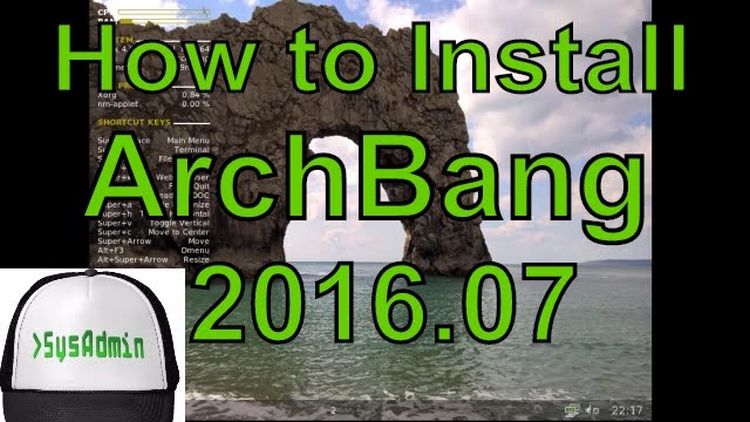
How to Install ArchBang 2016.07 and Apps on VMware Workstation Easy Tutorial

install archbang 2016

In this tutorial we'll learn how to install ArchBang 2016.07 on VMware Workstation or Player step by step. This tutorial is also helpful for installing ArchBang 2016 on physical computer or laptop. After Installing ArchBang, we'll update pacman pgp keyring in order to install additional packages such as Chromium web browser.

What is ArchBang Linux?

ArchBang Linux is a lightweight  rolling release Linux distribution based on Arch Linux. Using the Openbox window manager, it is fast, up-to-date and suitable for both desktop and portable systems. Arch Bang is especially suitable for high performance on old or low-end hardware with limited resources.
ArchBang Website: http://wiki.archbang.org/

What is VMware Workstation?

VMware Workstation is a hypervisor that runs on x86-64 computers; it enables users to set up one or more virtual machines (VMs) on a single physical machine, and use them simultaneously along with the actual machine.
VMware Workstation product website: https://www.vmware.com/products/workstation

What is VMware Player?

VMware Workstation Player, formerly VMware Player, is a virtualization software package for x64 computers running Windows or Linux. It is free to personal use. VMware Player can run existing virtual appliances and create its own virtual machines. It uses the same virtualization core as VMware Workstation.
VMware Player website: https://www.vmware.com/products/player


Hope you found this ArchBang 2016.07 installation tutorial helpful and informative. Please consider sharing it.

YouTube Channel